September of 2012 marked a new release of SageACT! - version 14, or as most people call is 2012. As an avid Google user - in fact, I run most of my day-to-day activities in GMail and GCal - the addition of Google integration is most welcome.
This post is not so much about the setup and inner workings, rather more of a "what you get" in the integration.
Showing posts with label Customer Relationship Management. Show all posts
Showing posts with label Customer Relationship Management. Show all posts
13 September 2011


04 October 2010
Updated Free Group Count AddOn Released
I've released an update to the free Group Count AddOn. The new version keeps the functionality of the original - to quickly view a count of a Group and it's sub-groups - but adds a few features requested by users.
Specifically:
Specifically:
- it will create a Group_Count field that can be added to a layout or a column in the Group List view
- creates a new menu item that goes through all the groups and subgroups, counts members, and puts the value in the Group_Count field, or in a Note under the Group record (depending on type of database)
- it auto-sizes the bottom left panel on the status bar - which allows you to view the entire group name instead of cutting it off
- additionally, in that lower left panel, it also automatically shows the number of contacts in the current group [e.g. "Customers has 141 members"] as you click on each group
08 June 2010
3 SwiftPage Tricks to Help your eMarketing
If you want to get better use out of SwiftPage eMarketing, here's three tips & tricks that are easy to implement. Additionally, if you are currently using another email marketing program such as ConstantContact, you might want to take a look at SwiftPage (if you're an ACT! user, or keep all your contacts in Excel, it's a must!!!) - contact me and I can show you the benefits of switching.
28 May 2010
What’s New in ACT! by Sage 2011
Automate key activities. Sage ACT! Smart Tasks handle the things you need to get done every day. Think of it like a personal assistant that sends e-mails for you and puts activities on your calendar so your customers get the service they expect, with little work required by you. Smart Tasks just get it done.
Unlock a rich source of new leads. Add rocket fuel to your sales and marketing machine with Sage ACT! Business Info*. Sage ACT! Business Info pulls highly targeted prospect lists and business info from Hoover’s™ and puts it directly into Sage ACT!. It helps you fill in the gaps in your database and gives you access to more than 65 million companies and 85 million executives.
Eliminate double entry. Sage ACT! manages all the details of your business relationships and Microsoft® Outlook® manages emails, basic contact details, and meetings across your team. Now you can have the best of both worlds and share your Outlook and Sage ACT! contacts and calendar using two-way sync.
Also, get in-depth information about Sage ACT! E-marketing:
With Sage ACT! E-marketing, you can do so much more than simply send emails and track open rates. It’s about knowing your customers. Capture leads with web forms on your website, nurture those prospects automatically with Drip Marketing plans, and quickly identify your hottest leads using a ranked call list that tells you which prospects are most interested—right from the contact record in Sage ACT!.
See if a demo roadshow is coming near you...
Unlock a rich source of new leads. Add rocket fuel to your sales and marketing machine with Sage ACT! Business Info*. Sage ACT! Business Info pulls highly targeted prospect lists and business info from Hoover’s™ and puts it directly into Sage ACT!. It helps you fill in the gaps in your database and gives you access to more than 65 million companies and 85 million executives.
Eliminate double entry. Sage ACT! manages all the details of your business relationships and Microsoft® Outlook® manages emails, basic contact details, and meetings across your team. Now you can have the best of both worlds and share your Outlook and Sage ACT! contacts and calendar using two-way sync.
Also, get in-depth information about Sage ACT! E-marketing:
With Sage ACT! E-marketing, you can do so much more than simply send emails and track open rates. It’s about knowing your customers. Capture leads with web forms on your website, nurture those prospects automatically with Drip Marketing plans, and quickly identify your hottest leads using a ranked call list that tells you which prospects are most interested—right from the contact record in Sage ACT!.
See if a demo roadshow is coming near you...
18 May 2010
When to Upgrade
While you are used to your CRM program, it's ins and outs, quirks and nuances, there does come a time when you either want to, or have to, upgrade. I've been working in the IT industry since 1994, and believe there are 4 main reasons why people upgrade - not just CRM systems, but office suites, browsers, operating systems, etc.
10 December 2009
Attach a Web Page to an ACT! Contact
A little known, but very useful feature in ACT! and Internet Explorer is the ability to attach the current web page you are viewing to a specific contact. This can be used to save a specific story about a company, news about a contact, a GMail message, or a blog post from a colleague.
This integration is intalled by default when you install ACT!. You can find it in Internet Explorer under the Tools Command Bar. This is not the menu bar (i.e. File/Edit/View…), rather is usually found towards the right-hand side of the screen, just above the actual web page. If you have tab viewing implemented, it might also be on that same level.
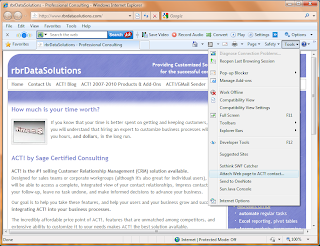
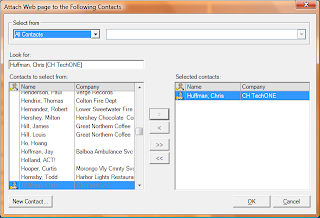
Click on that menu item, choose Attach Web Page to ACT! Contact, which will bring up, from ACT!, the Select Contact window. Choose a contact, and click OK.
This integration is intalled by default when you install ACT!. You can find it in Internet Explorer under the Tools Command Bar. This is not the menu bar (i.e. File/Edit/View…), rather is usually found towards the right-hand side of the screen, just above the actual web page. If you have tab viewing implemented, it might also be on that same level.

Click on that menu item, choose Attach Web Page to ACT! Contact, which will bring up, from ACT!, the Select Contact window. Choose a contact, and click OK.

Hope this helps, thanks…
Subscribe to:
Posts (Atom)

