Back in the "old" days, all you had to do is go to Tools>Preferences, and on the Communications tab click the Dialer button and tell ACT! the modem to use (if it hadn't already), and the dialing preferences, and you were able to dial a contact's phone number within ACT! VoIP does not use a modem, so here's how to keep (or recapture) that functionality...
01 February 2010


12 January 2010
Save Report Filters - Get Report Faster
If you run reports often, you are very familiar with the window that comes up when you start a report - the “General” tab to choose output format and contact lookup, and the other Note/History/Opportunity/Activites/etc tabs where you need to specify both the date range and type of information to output to the report. Furthermore, if you utilize reports often, you find yourself performing the same clicking/selecting on every tab editing dates and checkboxes to get the same report run time after time.
There’s a shortcut to these options, and it’s in the report editor. Go to Reports>Edit Template…, and choose the report you want to edit. When the report editor loads, choose Edit>Define Filters:

There’s a shortcut to these options, and it’s in the report editor. Go to Reports>Edit Template…, and choose the report you want to edit. When the report editor loads, choose Edit>Define Filters:

This will bring up the same familiar window you get when pulling a report. However, now when you select your criteria - e.g. Send the report to an HTML file using the Current Lookup for All Users, and only select Notes and History for the Current Week - and save the report, those setting will be your defaults for that specific report. If you want the same report format, just with different selections, save the report template with another name. You can have “Notes/History by Week”, “Notes/History by Month”, and so on.
As a bonus, you can also take the most common reports and put that specific report as an icon on the toolbar:
Find the steps you seem to repeat over and over on a regular basis, and look for ways to make that process more efficient. Chances are, it can be done in ACT! Hope this helps…
As a bonus, you can also take the most common reports and put that specific report as an icon on the toolbar:
- Right-Click the toolbar, choose Customize
- click the 5th tab - Custom Commands and choose "New"
- Give the command a name, click Browse, navigate to your reports folder, and choose a report (might have to show all files) This is your "command line"
- Now, go back to the 2nd tab - Commands and choose Custom Commands from the "Categories"
- The name and command line you specified on the 5th tab will be in there. Click and drag the new command to any spot on the toolbar.
Find the steps you seem to repeat over and over on a regular basis, and look for ways to make that process more efficient. Chances are, it can be done in ACT! Hope this helps…
10 December 2009
Attach a Web Page to an ACT! Contact
A little known, but very useful feature in ACT! and Internet Explorer is the ability to attach the current web page you are viewing to a specific contact. This can be used to save a specific story about a company, news about a contact, a GMail message, or a blog post from a colleague.
This integration is intalled by default when you install ACT!. You can find it in Internet Explorer under the Tools Command Bar. This is not the menu bar (i.e. File/Edit/View…), rather is usually found towards the right-hand side of the screen, just above the actual web page. If you have tab viewing implemented, it might also be on that same level.
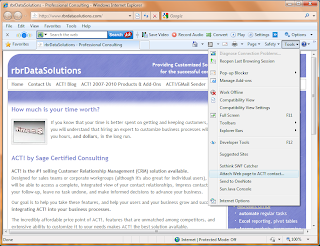
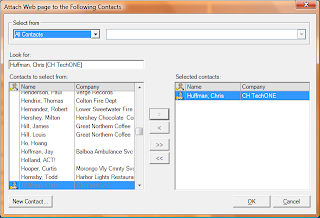
Click on that menu item, choose Attach Web Page to ACT! Contact, which will bring up, from ACT!, the Select Contact window. Choose a contact, and click OK.
This integration is intalled by default when you install ACT!. You can find it in Internet Explorer under the Tools Command Bar. This is not the menu bar (i.e. File/Edit/View…), rather is usually found towards the right-hand side of the screen, just above the actual web page. If you have tab viewing implemented, it might also be on that same level.

Click on that menu item, choose Attach Web Page to ACT! Contact, which will bring up, from ACT!, the Select Contact window. Choose a contact, and click OK.

Hope this helps, thanks…
03 December 2009
Send GMail directly from ACT!
Basically, over the last year, I have received numerous inquiries into integrating GMail with ACT! I have blogged about integrating via Outlook, but often people either don’t want to use Outlook, or don’t have it. This add-on addresses both those issues.
Features:
The add-on creates a new menu item under Tools called WebMail Sender. It is also a toolbar button. Choosing that option will bring up what essentially is a New Mail Message window, with the email address of the current contact in the To: field. Now, fill in the Subject, the body of the email, (and CC: if desired), and click Send.
After sending, if successful, a new History item will be recorded with the date & time, and the Subject of the email as the “Regarding” line in the History item. Additionally, the Last E-Mail system field in ACT! (on top half of screen, under Latest Activities) will be updated. If selected, the body, and names only of the attachments will be recorded in the same History entry.
Please check it out at http://www.rbrdatasolutions.com/products.htm Thanks!!!
Features:
- send mail directlyfrom ACT! through GMail
- HTML editing window
- supports attachments
- automatically populates To: field from current contact
- HTML Signature - even with images. GMail does not even do that!!!
- save/open messages as templates
The add-on creates a new menu item under Tools called WebMail Sender. It is also a toolbar button. Choosing that option will bring up what essentially is a New Mail Message window, with the email address of the current contact in the To: field. Now, fill in the Subject, the body of the email, (and CC: if desired), and click Send.
After sending, if successful, a new History item will be recorded with the date & time, and the Subject of the email as the “Regarding” line in the History item. Additionally, the Last E-Mail system field in ACT! (on top half of screen, under Latest Activities) will be updated. If selected, the body, and names only of the attachments will be recorded in the same History entry.
Please check it out at http://www.rbrdatasolutions.com/products.htm Thanks!!!
26 October 2009
New vCard Utility released
An update to the popular add-on for ACT! 2007 - 2009 (versions 9 - 11), the new vCard Utility not only sends contact information by automatically attaching a vCard to Outlook, it now Saves to File… vCard information, and Imports a vCard into ACT!, creating a new contact record.
More information can be found at http://www.rbrdatasolutions.com/products.htm
Thanks!
More information can be found at http://www.rbrdatasolutions.com/products.htm
Thanks!
Subscribe to:
Posts (Atom)

